
3 Ways to Record Audio on Android (And Fix Sound Errors)

Your Android phone is surprisingly powerful when recording a clean sound. It could be a quick voice note, a lecture, or a podcast episode; you can record audio on Android! But if you ever hit record only to end up with silent clips, you know the process is not always smooth. No worries, though; getting great results will be effortless using this guide. Here are three reliable ways for you to record internal and external audio on Android, along with simple fixes for issues you may face.
Guide List
Record Microphone Audio on Android with Built-in Voice Recorder Record Internal audio on Android with Built-In Screen Recorder Record Audio on Android [Longer Recording & Better Control] Common Problems and Fixes for Android Audio RecordingRecord Microphone Audio on Android with Built-in Voice Recorder
Every Android phone is equipped with a powerful, built-in voice recorder; you just need to know where to look. For some, it is named Voice Recorder or just Recorder, and this native app needs no downloads and no complicated setup. It uses your phone's internal microphone to record Android audio while keeping the file size lightweight. Plus, modern updates often include bonus perks like bookmarking, transcription, and offline access.
Step 1.Swipe up on your home screen to access the drawer. Search for "Voice Recorder", and tap to open it. Check for mode options such as Standard or Interview.
Step 2.Next, tap the "Record" button to start recording sound. Pause it if you need a break or tap the "Bookmark" icon to mark the key moments while speaking.
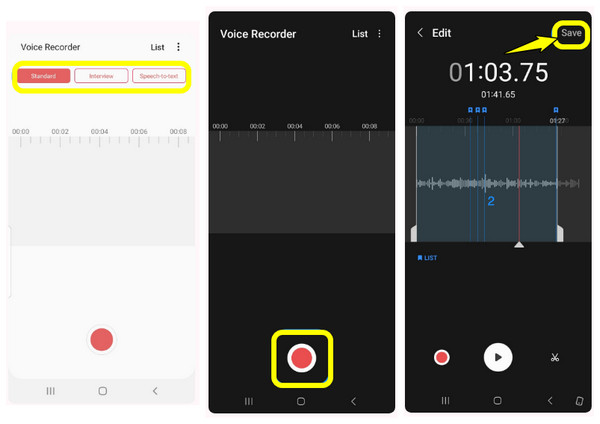
Step 3.When the voice recording's done, tap the "Stop" button. Type in your desired title, and tap the "Save" button to store it in your phone's storage.
Best For: Ideal for quick thoughts and memos, students and professionals who record lectures and meetings; content creators who need quick interviews.
Record Internal audio on Android with Built-In Screen Recorder
While recording audio on Android, mainly external voice, is a breeze, you might need to record what's inside your phone instead. Turns out, most modern manufacturer modified devices like Samsung Galaxy and Xiaomi have built a screen recorder that can help you record internal audio on Android. It bypasses noise entirely, giving you only a digital-quality sound straight from your apps, games, and system media.
Step 1.Swipe down twice from the top of your Android screen to get the full Quick Settings panel. Locate and tap the "Screen Recorder" tile. If it is missing, tap the "Edit" button to drag it to your active files.
Step 2.Next, locate the sound settings and choose Media, Internal Audio, or System Sounds to record (Aim for Media & Mic to add narration).
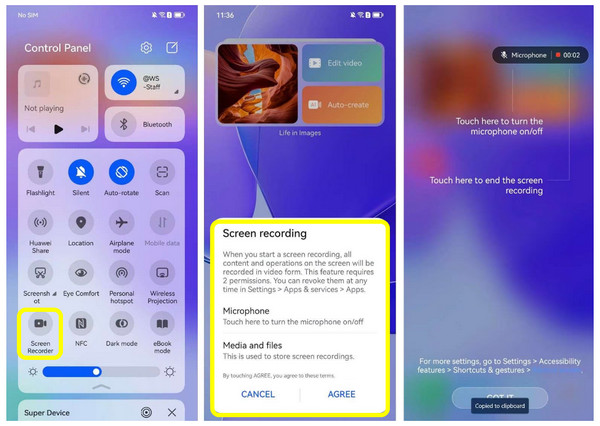
Step 3.When ready, tap "Start Recording". Later, tap the "Stop" button, and you can then convert the saved video if you only need the audio file.
Record Audio on Android [Longer Recording & Better Control]
Going from on-device tools to record audio on Android to a desktop solution opens up a whole level of control, especially when you need uninterrupted recordings. Therefore, connect your Android device to a desktop software like AnyRec Screen Recorder. It features specialized recording modes for online meetings, gameplay, webcam, and mobile screen mirroring via USB or Wi-Fi. Using its mirroring power, you can bypass your phone's triage limitations, fine-tune your sound settings, and capture lengthy lectures, podcasts, or streams with professional clarity.
Its dedicated Phone Recorder captures audio from Android directly on your computer.
Offers noise reduction and mic enhancement for studio-quality clarity.
Cut out awkward pauses, background noises, or silence after you finish recording.
Export Android audio recording in versatile formats like MP3, M4A, AAC, etc.
Secure Download
Secure Download
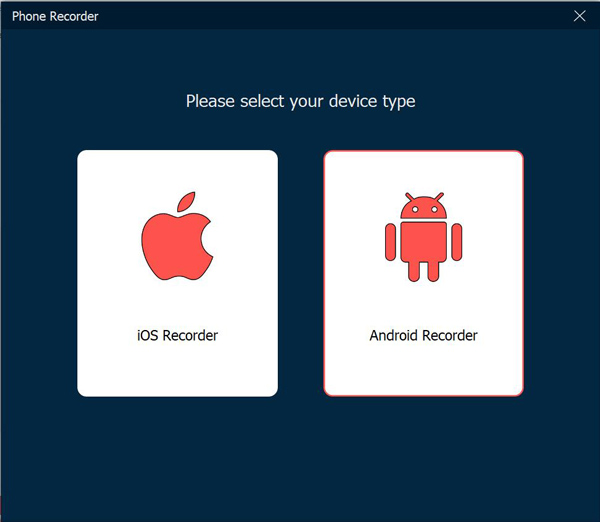
Step 1.Boot up AnyRec Screen Recorder on your desktop computer. On the main interface, click the "Phone Recorder" button, then pick the "Android Recorder" from the pop-up window.
Step 2.Choose your preferred connection method:
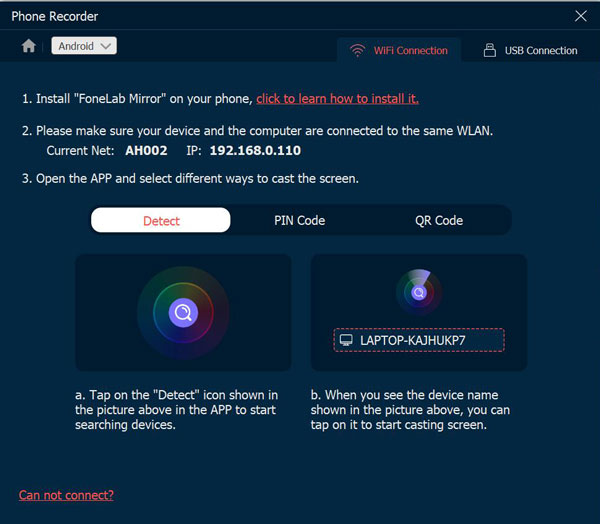
For Wi-Fi, connect both your Android phone and PC to the same Wi-Fi network. Open the FoneLab Mirror app on your phone. Later, sync them using "Detect", entering the "PIN Code", or scanning the "QR Code".
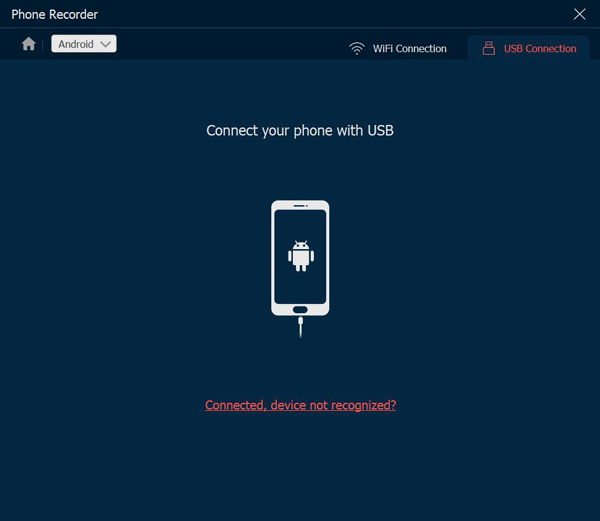
For USB connection, simply plug your Android phone into your computer through a reliable USB cable for a solid mirroring setup.
Step 3.With everything locked in and your Android audio parameters adjusted to your liking, click the "Record" button to start capturing audio seamlessly.
Common Problems and Fixes for Android Audio Recording
Nothing ruins a great Android audio recording faster than hitting stop and being met with only silence. Even if you know how to record audio on Android by now, you may still run into hiccups. Check out the following fast fixes for the most common audio recording problems:
1. The App Waveform Moves, but the Saved Audio File is Silent
Cause: Your phone's media routing is misdirected. Or there are some permissions block output access.
Quick Fix: Try to disconnect any active Bluetooth devices, then swipe down to your "Quick Settings" and check if the global Microphone toggle is switched ON.
2. The Recording App Absorbs Too Much Background Noise
Cause: Your microphone settings or enhancement features are raising hums, PC fans, and other background noises.
Quick Fix: Put your Android phone on a flat surface to stop vibrations. Next, look for "Noise Suppression" or Cancellation in your app's settings, and please enable them to reduce background noise in audio recording.
3. Internal Audio Doesn't Work on Android 9 or Below
Cause: Google restricted the built-in internal audio capture for privacy reasons.
Quick Fix: Change your audio source to "Microphone" in your app settings and place your phone close to its built-in speakers in a quiet room. Or, try connecting your Android phone to a PC to capture the sound seamlessly.
4. The App Was Fine, but Produces Silent Clips
Cause: A background update may have disabled microphone access, or another app is silently holding onto your device's microphone.
5. Recording Quality is in Low Volume
Cause: Debris may block the physical microphone port, or it may be simply an incorrect microphone placement.
Quick Fix: Kindly check the small microphone pinhole of your Android phone and clear it out using a soft brush. Make sure your hands or phone case isn't covering the microphone while holding your device during recording.
Conclusion
And there you have it! Recording audio on Android can be done with your phone's built-in voice recorder for quick memos, or tap into the screen recorder for internal sound. And next time your recordings hit an issue, you know exactly which quick adjustments will save the day. To enjoy total freedom for longer recording times on your Android, make use of the desktop tool AnyRec Screen Recorder! Download it today to give your Android audio recordings the upgrade they deserve!
Secure Download
Secure Download
Related Articles
About Our Author




